
Wise Ink: At First Draft: The 6 (Minimum) Steps to Revising Your Manuscript before Submission


Image Credit: Ten Tremendous Tips for Editing

Wondering how many revisions you should make before submitting to the professionals? Technically, as many as you want but I found this article most helpful. I love how they break it down into steps so it’s not overly complicated. I also like the idea of self-editing / revising twice then submitting the third draft to betas, and then revising once more after that. I also love the rules for Betas. Check out the post at the link below!

(BTW, it’s not a good idea to publish a 1st draft. A first draft is after you’ve finished writing the story for the first time and it has not been revised or self-edited before being submitted to an editor.)

At First Draft: The 6 (Minimum) Steps to Revising Your Manuscript before Submission

The Editor’s Blog: Writing Numbers in Fiction

Ever wondered how to write numbers and time in Fiction? Check this out! The Editor’s Blog shows us how it’s done.


“We’ve got rules and standards for everything we include in our novels—how to start those novels, how to increase tension, how to introduce characters, how to format, what to include in dialogue, how to punctuate dialogue, what to exclude from the first chapter. And we have rules for numbers. Or maybe we should call all these rules conventions.

This article covers a few common specifics of using numbers and numerals in fiction. I’m just going to list the rules here, without much explanation, laying out those that you’ll typically make use of in a novel. Keep in mind that there are always exceptions. For the most part, you’ll want to stick to the standards to make the read smooth and easy for the reader and create consistency within the manuscript.

Yet we’re talking fiction here, not a treatise or dissertation or scientific finding. You have choices. And style choices sometimes get to stomp all over the rules. If you want to flout the rules, do so for a reason and do so consistently every time that same reason is applicable in the manuscript. For a comprehensive list of the rules concerning numbers, check out the Chicago Manual of Style or another style guide.”

SOURCE: Writing Numbers in Fiction: Click Here to Keep Reading

Editing Mock-Ups in Photoshop (In 12 Steps)

I didn’t plan on sharing this but as I was editing some mock-ups I thought it would be nice to share what I am doing.

I am not a professional photographer, and I don’t always have a chance to take professional images. Therefore, I love using free mock-up templates to create professional images of my books. I am learning Photoshop also because if I can master it, I can also start to create my own book covers! (OK, that’s a far way off but a sista can dream).

But, while I am finagling (am I the only one who thinks finagle is a funny word?) around with this, I decided to put together a quick tutorial on what I am doing for those of you who use Photoshop. It’s super easy and if you have Photoshop, you should be able to get started right away.

Note: I’m not a professional “Photoshopper” and have instead found my own way of editing mock-ups because this way is easier for me but there are lots of other ways to do this.

Step One

Get Photoshop. You can get Photoshop CC for as low as $10/month. For me it’s worth the money because I use mock-ups often. However, there is a free trial you can use for seven days if my memory serves correctly. http://www.adobe.com/ (There are also plenty of free ways to create 3D images. I use Photoshop because the quality of the images is top notch.)

Step Two

Once you have Photoshop, find a free mock-up that you like. Be sure the license allows you to use it. Most of them do as long as you don’t try to sell the mock-up as your own. You can find some great ones at http://covervault.com/

Step Three

Download a mock-up you like. I’m going to use this one.

Step Four

Click on the zip file and double click on the Photoshop file to open it.

OK so you can pretty much change anything on here to make it your own. Eliminate the background, upload your own images, change colors, etc. But…

I’m just gonna show you how to change the book covers.

Step Five

Go to the side panel here. Let’s start with the front book cover. Click on the arrow next to Front Book, scroll down to front cover and double click on the space where the front book cover is…right where my arrow is.

It will bring up the mock cover here..

Step Six

File > Open > Find the cover (or image) you’d like to use on your computer and click on it….and

Screenshot (601)Screenshot (602)It will open in Photoshop. When it does, unlock it at the bottom. If you don’t unlock it, you cannot edit it.
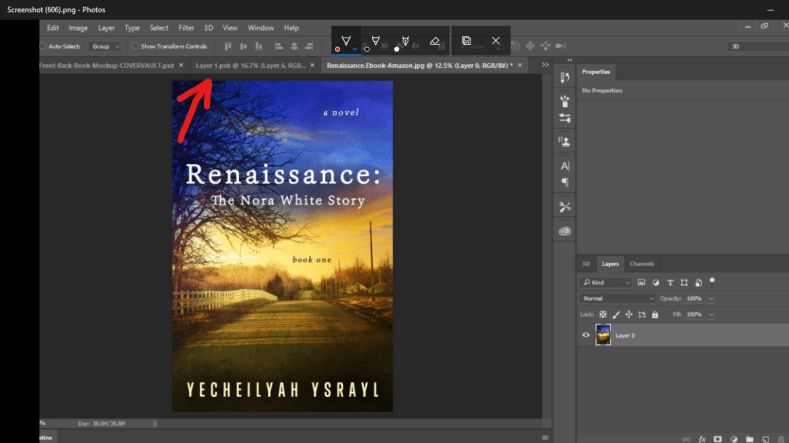
Step Seven

Click on your cover and drag it to the mock layer.

Step Eight

This one has lots of special effects I don’t need. If ever you don’t want something in the image you can either delete the layer or hide it. Click on the eye next to the layers to hide them. I want to hide the mock-up text and other things…

If you did it correctly it should leave only your cover and look like this (below)…if you look at the layers next to where my marker is you will see that the eye is closed. This means I am hiding these layers so they don’t show.

Step Nine

As you can see, when you move your cover to the layer (see step seven) it will be too big. On your MAC click command T to highlight it to resize. On PC click ctrl T. Now just resize it to fit the space.

Step Ten

Save your resized cover. File > Save as (save it under a name you will recognize. You will need to remember where you saved it.)

Screenshot (621)Screenshot (627)

Step Eleven

Go back to the panel and right click in the space next to the front cover.

Step Twelve

If you did it correctly, it should bring up the box below…where you see replace contents, click on that.

When the box opens, find your saved image from Step Ten and replace the mock image with your own.

And that’s it!

For the back cover follow the exact same steps:

  • Click on the arrow next to back cover.
  • Double click on back cover
  • File > Open > Choose the image for your back cover
  • If it’s locked, unlock it
  • Click and drag your cover to the mock layer (you can’t move it if it’s locked)
  • Hide any layers you don’t need/want
  • Resize image > Command T (MAC) or Ctrl T (PC)
  • File > Save as to your PC
  • Back to the panel, right click in the space next to the back cover > Replace contents
  • Find saved image > place

The last thing you will do when you have both the front and back cover done is to File > Save as > PNG

You’re done.

Renaissance: The Nora White Story Book One. July 15, 2017. yecheilyahysrayl.com

Dear Bloggers, Remember to Edit Your Blog Pages and Sidebar Text

Before we tuck in for the weekend I wanted to give some quick heads up to those who may either be new to blogging or still trying to find your way around the WordPress platform.

If you are at all serious about blogging, whether that is to build an author platform or just to share your thoughts, be sure that your pages are all filled in and that your sidebar is as well. What do I mean “Fill in?”

There is nothing that screams amateur more than:

“This is a text widget, which allows you to add text…” and so on.

You would want to ban these words from anywhere on your blog! GET RID OF THEM. Why?

bitmoji-2000907637

To put this as nice but as real as I can, it makes you look lazy. It only takes a few minutes or maybe even a few hours to fill in the text on your blog.

There aren’t rules to blogging exactly but there are things that are common sense. This is one of them.

To get rid of those dreadful words, you will need to be sure those words are replaced with images or text. No, you don’t have to get super fancy but if your blog theme is one that requires you to fill in an area, such as an about page, you may want to go ahead and do that. Or else these words will speak to readers before you do. When I see them I think maybe that blogger just started out. If you started your blog a year or more ago, that’s not exactly the impression you want to give.

Go to your WP Dashboard. To edit a page, go down to Page > All Pages and edit the pages you have there. If you don’t want to show pages then it is best to delete them, although I am not sure why anyone wouldn’t want an About page. Either way, it is your prerogative. If you want the page to show to viewers, please fill it in with something. Do not leave it blank.

This is especially  important if you are an author looking to grow your audience through blogging. I mean, come on. You are a master of the written word (Yes, you are! Say it and then believe it). Anything that has to do with words should be taken seriously, even if it is text on your blog! If there’s no effort put into these words, then what are we to think about your books?

To edit sidebar Widgets, go to: WP Dashboard > Appearance > Widgets

This will show you the widgets that come with your blog’s theme and give you the chance to add more if you like.

You don’t have to be extra fancy. (We actually prefer you be your relaxed and funny self), but do put something there. Unless you don’t want your blog to grow, in which case, leave it how it is.

Now, run along now and enjoy the rest of this beautiful day.

bitmoji594883210

How to Correctly Punctuate Dialogue for Novels

Punctuating dialogue tags from The Writers After Dark Blog. The lowercase letter after splitting the dialogue with a tag was extremely helpful. Thank you.

S. Katherine Anthony's avatarWriters After Dark

dialogue-punctuation-rules

Writing dialogue is messy. Am I right?

It has so many rules, it makes me wish I’d gone with my original plan in life. I’d intended to become an all-in-one supermodel-psychologist/part-time medical researcher. What? I thought I wanted to save people, discover things, and change the world wearing a tiara and killer heels. But the more I thought about it, the more I realized I just wanted to sit on my couch drinking coffee and writing all day while wearing no pants.

Plus, apparently my status as a supermodel got cut short (no pun intended) by my lack of height. And love of cake. Also, had I continued studying psychology, I’d have been forced to stop listening to the voices in my head . . . and that was SO not cool. The thing was . . . I didn’t know how to properly punctuate any of my internal…

View original post 1,559 more words

Revision and Technique

Excellent advice on Revisions and Technique.

mdellert's avatarMDellert-dot-Com

Before beginning a revision project, it’s important to consider several technical matters. Just as important is to keep in mind that these aren’t rules, but principles that will encourage you to make informed choices about your work. For every suggestion or example, there are exceptions, and nothing here should taken as carved in stone.

Show, Don’t Tell

Keep Calm and Start RevisionWe’ve all heard this before. But keep in mind that this is NOT an imperative so much as a warning. There is a time and a place for telling, and in fact, situations in which it is preferable or even necessary to tell the events rather than show them. Not every piece of information in your story needs the same level of attention and importance. But which is which, and how do you know?

Telling is a summary of events, as if they are merely being reported. This can create distance between your…

View original post 1,987 more words

Editing Re-Blogs


sharing-is-caring

A re-blogged post is when you share someone’s content to your own blog. People have many different reasons for doing this. Primarily, re-blogged content is to share valuable information. I re-blog often on this blog and have found it to be a great way to network with other bloggers. As a result, I’d like to share some specific things I do with my re-blogs to get the most out of them. As you can tell from the commentary, this is a revision of an older post I published last year (2015) so you may already be familiar with these as many bloggers have mentioned them over time. But don’t worry, repetition is a good thing.

Edit Your Re-Blogs

  1. Add Tags, Category

I usually re-blog from my mobile. This is because I’m usually scrolling through my phone when I come across a good article I think should be shared and I like to share it right then and there so I won’t forget about it. It’s also easy for me to edit my re-blogs when I’m on my phone. When I re-blog a post, I immediately go into my dashboard and I add tags. Unlike original posts you draft yourself, a re-blogged post will not have tags.

As a shared post, the tags of the original owner are not included. To get the most out of the re-blogged post you must edit the post and add your own tags the same as you would any other post. I usually ensure the word “Reblog” is part of my tag to show I am not the original owner (and so that the post shows up for those searching the keyword “reblog”). This will help more people to see it, drive attention to the post and ultimately lead to more views for the original blogger. This is perhaps the most effective way to enhance visibility of a re-blog. Tag Tag Tag.

I also place the article in its appropriate category. Otherwise, the re-blog will fall under “Uncategorized”. To avoid this, you can choose a default category if you are usually at work or somewhere that prohibits you from being able to edit your re-blog. This means this is the category that all posts will automatically fall into. My default category is General Topics.

How to Change It

In your admin area, navigate to Settings > Writing > and then look for the drop down menu beside Default Post Category and set it to the category you want to be your default.

  1. Add Commentary

I always include commentary in my post if I can help it. In my opinion this boosts the value of the post, helping readers to see that not only have I read the original but that I got something out of it. Keeping it brief, I usually include what I enjoyed most about the article and of late I’ve also been adding a post quote or a direct quote from the original post that I found the most helpful or that gives an introduction into what the post is about.

You don’t always have to, but it helps to write a brief description of the post to get people excited about it. If your re-blog is about Self-Publishing tips for instance, maybe you can say: “Great Tips for Self-Publishers!” This will help grab someone’s attention to possibly check out the post.

  1. Disable Comments

Re-blogged posts do not belong to me. I did not write them and I am not interested in taking the credit. I’ve recently started disabling comments on my re-blogs because I want readers to comment on the original post. Since I didn’t write the post, it would just be weird asking me a question about it. Not only am I prompting readers to visit the other blog, but to also share the post from the original blog. Since re-blogged posts are just shared content from another person’s blog, it won’t have the entire post displayed, just a summary. It only makes sense then to share the post from the original blog. Otherwise, people must click on my blog just to click again to go to the original blog. Too many clicks mean “I don’t feel like doing all of this and I’ll come back to this post later (or not)“.

How to Disable It

Edit the post using the Improved Editor > More Options > Uncheck Allow Comments.

If you don’t want any ping-backs and trackbacks, uncheck that box as well. Readers will then be forced to interact with the original post.

4. Featured Image

Some re-blogs will include a featured image. If you don’t want this image prominently displayed on your blog, or you feel that it takes away from the post, you can go into your dashboard > Featured Image and disable it. I do this often when the image from the other blog makes the post look sloppy on my blog (keep in mind your space as well as images from re-blogged posts will now be a apart of your image archives).

What I Don’t Edit

Title – I do not see a reason to edit the title of someone else post. This takes away from the originality of the original blogger and teeters on a compromise of integrity. There are instances where this is acceptable but they are very limited. You may want to turn “dogs with personalities” to “Dogs with Personalities” to help the post to stand out more for the original blogger if you know capitalizing certain letters is important. In this instance you’re helping the original blogger by making sure it gets the visibility that it deserves. But for the sake of being accused of plagiarism, I would just leave the original title the way that it was when you found it.